Showing posts with label Windows 7. Show all posts

How to Create a Windows 7 Portable USB Drive

Requirements:

1. A Windows 7 ISO or Windows 7 disc.
2. A 15 GB USB 3.0 or larger flash drive.
3. Access to a computer with Windows Operating system installed that can boot from a USB drive.

To Create the Portable USB Drive:

1. Download and Install WinToUSB. You’ll need to be an administrator on the computer you install WinToUSB.

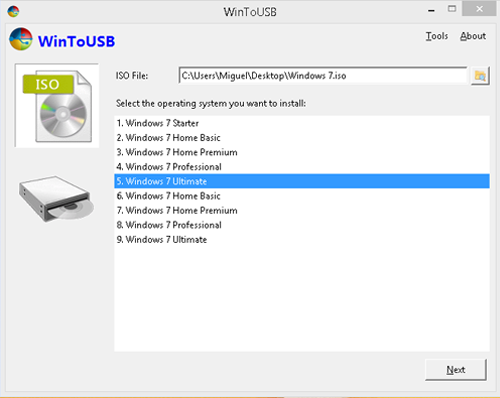
2. Run WinToUSB, you’ll be prompted to choose your ISO file or disc. Click the small folder button to browse for it, select the operating system you want to install, then click Next.

3. You’ll be asked to select your hard drive and choose the system and boot partitions. With a USB as your hard drive you should just be able to select the first partition as system and the second partition as boot, as shown.


4. When you click next, the installation will begin. This process might take awhile depending on your computer speed.


5. That’s it! It’s. Just plug in the USB onto any windows computer, restart the computer,Change the boot sequence in the BIOS and boot from the USB drive just like you would a CD.


Note: The first time it starts, it’ll install the necessary drivers and take a while to boot. The installation of drivers would happen every time you plug it into a new PC.

How to Enable the Sleep Option in Windows 7 Shutdown Menu

My sleep button is grayed out how do I enable it? The Process of enabling the Sleep option in Windows 7 shut down menu it’s simple.


Enable “Sleep Option”

1. Download the Enable Sleep.zip. Save the zip file to the desktop.
2. Extract the content of the Zip file.


3. Double click to run the extracted Enable_Sleep.reg.
4. If prompted, click on Run, Yes to the (UAC) window, Yes to the Registry Editor window, and OK to make changes.


5. Restart the your PC to apply.
6. You can now delete the zip and .reg file if you like.

If that doesn’t work:

1. Download and install latest display driver from the manufacturers website.
2. Run Command prompt as Admin, and type powercfg /hibernate on

Sleep Option greyed out
If you Run powercfg in the command prompt – it should say that hibernation has been turned back on, and sleep is now supported.

Create an ISO Image File From a Windows 7 Installation Disk

Creating a Windows 7 ISO from a Windows 7 installation Disk is the same as creating an ISO from any type of disc” that is not true at all, not all ISO software support creating an ISO from a Windows 7 Installation disk.

Creating a Windows 7 ISO Image:

1. Download and install Magic ISO Maker.


2. Run Magic ISO a link of magic ISO will show on the notification area right click it.
3. Select Make CD/DVD Image…


4. Choose “Source CD/DVD-ROM” where you have the Windows 7 disk located.


5. Enter output file and name it.


6. Choose ” Standard ISO image file (.ISO) ” for Output format.
7. Click “Ok” to process.


8. Once finished you’ll have an ISO of your Windows 7 installation disk.